
Obsidian New Tab: How to Sync Local Markdown Notes with Every New Tab in Chrome
For personal knowledge management (PKM) practitioners, Obsidian is the gold standard of local-first writing. Here is how to turn Chrome's new tab page into a seamless, offline extension of your local Obsidian vault.
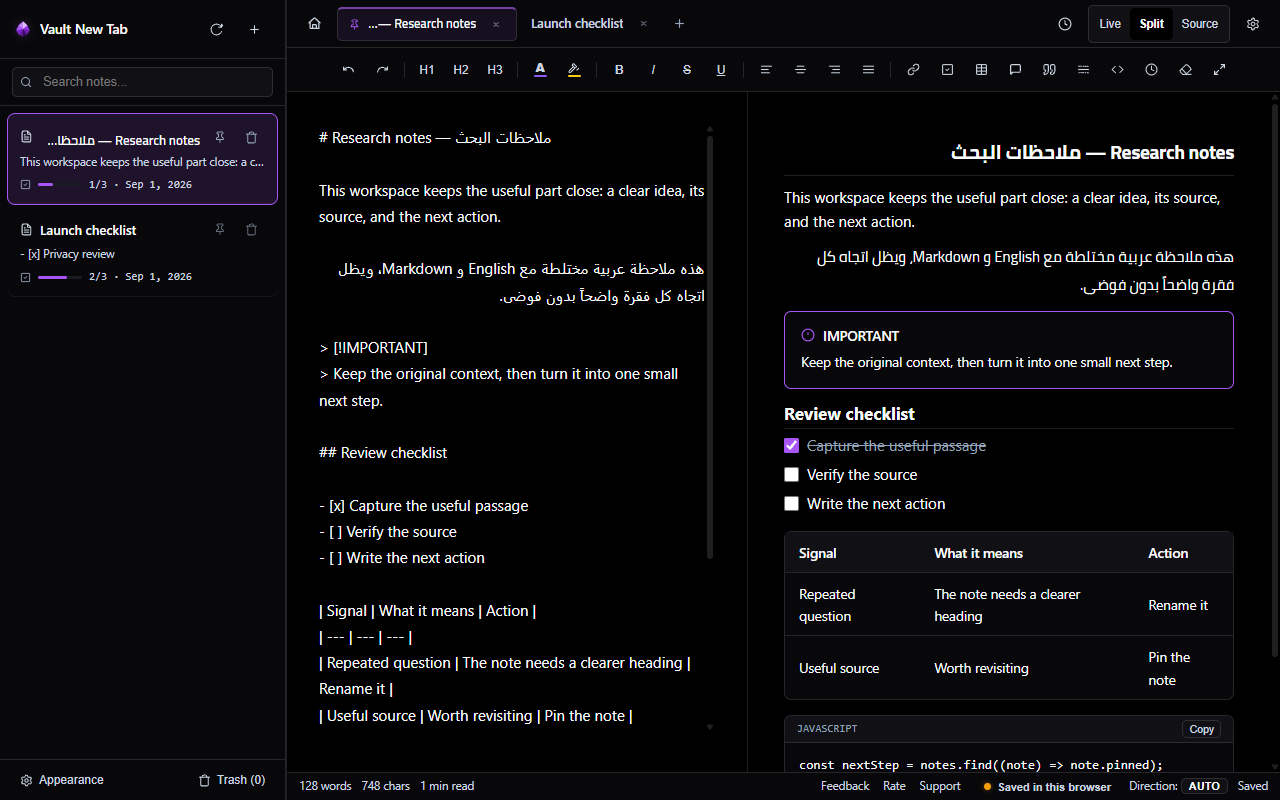 Vault NewTab: Split-screen Markdown editing directly synced with local files on disk.
 The Missing Link in the Obsidian Ecosystem
If you use Obsidian, you subscribe to a fundamental truth: your data belongs to you. Plain text Markdown files stored on your local disk will still be readable decades from now, independent of any proprietary cloud startup.
However, our web browsing experience has traditionally been disconnected from this philosophy. When browsing research papers, GitHub repositories, or technical documentation, capturing quick insights meant switching away from Chrome, opening the Obsidian desktop app, navigating to your daily note, and pasting text.
With Vault NewTab, your browser becomes a high-speed satellite station for your Obsidian vault.
How File System Access Bridges Chrome and Obsidian
Modern Chromium browsers support the W3C File System Access API. This allows web extensions (with explicit user permission) to read and write directly to an existing directory on your SSD or hard drive.
Connect Your Existing Obsidian Vault Folder
In Vault NewTab, click the Settings icon, navigate to Obsidian Vault Sync, and click Connect Local Folder. Select your existing Obsidian vault folder (or a subfolder like /Inbox or /Daily Notes).
Automatic YAML Frontmatter Protection
Obsidian vaults frequently rely on YAML frontmatter (metadata like tags, date, aliases, or Dataview properties). Vault NewTab intelligently hides YAML frontmatter in the live editing surface while preserving every single character with 100% fidelity on disk.
Native Obsidian Callouts & Syntax
Use Obsidian callout blocks natively in your new tab:
> [!NOTE]
> Callouts render with beautiful icons and responsive typography.

> [!TIP]
> Use Alt + D to open or create today's Daily Note instantly.
Power Workflows for Knowledge Workers
- Alt + D Daily Notes: Hit Alt + D to open today's timestamped note in a split second. Review daily to-dos, log phone calls, or capture fleeting thoughts.
- One-Click Web Clipper: Highlight text on any website, right-click, and choose "Save selection to Vault note". It captures the excerpt, formatted title, author, and original URL.
- On-Device Voice Memo Transcription: Multi-tasking? Tap the microphone button or press Alt + T to dictate ideas. An on-device AI model transcribes your words directly into your active Markdown note without sending audio to the cloud.
- Chrome Side Panel Companion: Need your notes alongside documentation? Open the Vault NewTab companion in Chrome's Side Panel with Ctrl + Shift + S.
Sync Your Vault with Chrome Today
Experience zero-latency Markdown capture every time you open a tab.
Add to Chrome